

Official Freematics Hardware
Freematics OBD-II Emulator MK2 with J1850 PWM/VPW
Freematics OBD-II Emulator MK2 is a device that emulates a 16-pin female OBD-II port with KWP2000, ISO9141, CAN bus and J1850 data protocols. It responds to requests for standard OBD-II PIDs (including DTC and VIN) from a plugged-in OBD-II compliant device. It simulates up to 6 active vehicle diagnostic trouble code (DTC) for Mode 03, 07, 0A respectively same as what a real car has when encountering a component malfunction or fault.
This product is useful for OBD-II related application development on desk. When coupled with external data source, it can also be used to provide a standard OBD-II port for vehicles that don’t have one and thus existing OBD-II device/software can work with the vehicle.
The emulator can be controlled by GUI software via a USB cable or wirelessly via BLE by Freematics Controller app available for both iOS and Android. It can also be programmatically controlled via USB or serial UART interface for further development.
Hardware Features
- Standard 16-pin OBD-II female port (powered)
- Simulating vehicle data bus (CAN, KWP2000, ISO9141-2, J1850 PWM, J1850 VPW)
- Simulating OBD-II Mode 01 PIDs (0100-0163)
- Simulating OBD-II DTC (mode 03/07/0A, up to 6 active DTCs)
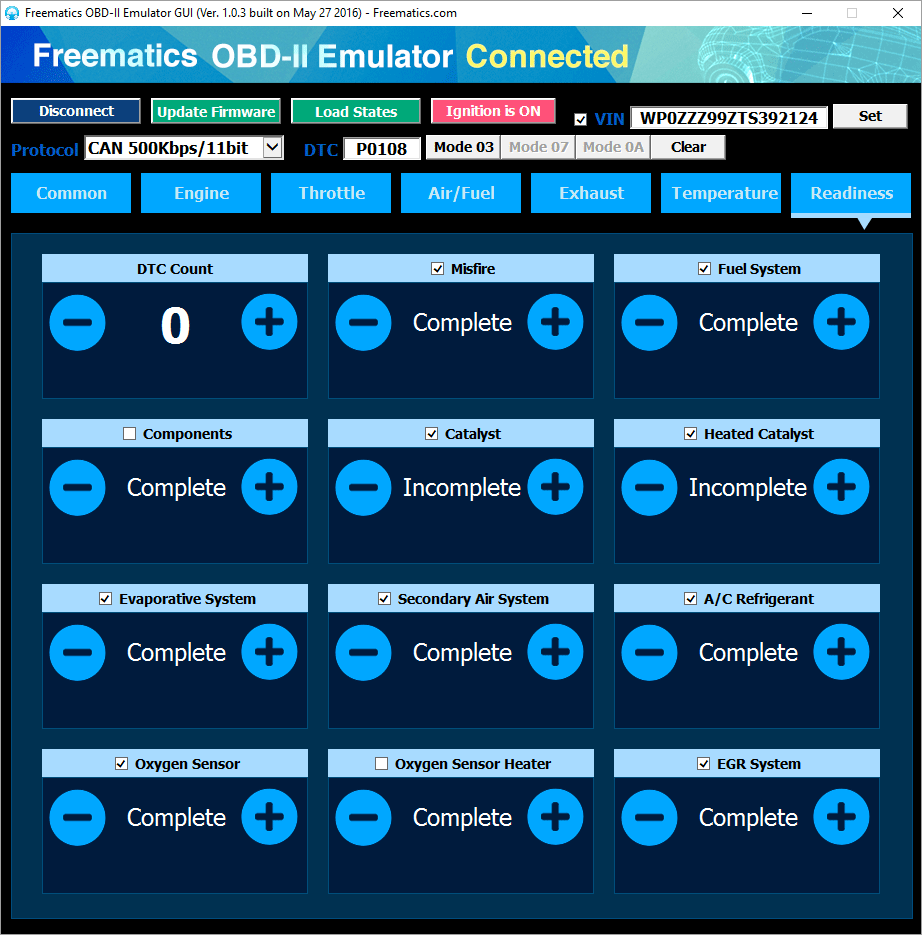
- Simulating OBD-II readiness monitors
- Simulating VIN data (Mode 09)
- Operated by GUI software (via USB) or iOS App (via BLE)
- Programmably controlled by AT command-set via serial UART or USB
- Firmware upgrade via USB
Following protocols are implemented:
- CAN/ISO15765 500Kbps/11bit
- CAN/ISO15765 250Kbps/11bit
- CAN/ISO15765 500Kbps/29bit
- CAN/ISO15765 250Kbps/29bit
- ISO9141-2
- KWP2000/ISO14230 Fast
- KWP2000/ISO14230 5Kbps
- J1850 VPW (optional)
- J1850 PWM (optional)
Please note the emulator does not actively generate CAN signals without presence of OBD device.
The emulator has following interfaces on its enclosure:
- 16-pin female OBD-II port
- DC 12V input
- USB port
- I/O socket (XH-2.54)
The emulator has following sockets on its enclosure:
- 16-pin female OBD-II port
- DC 12V input
- USB port
- I/O socket
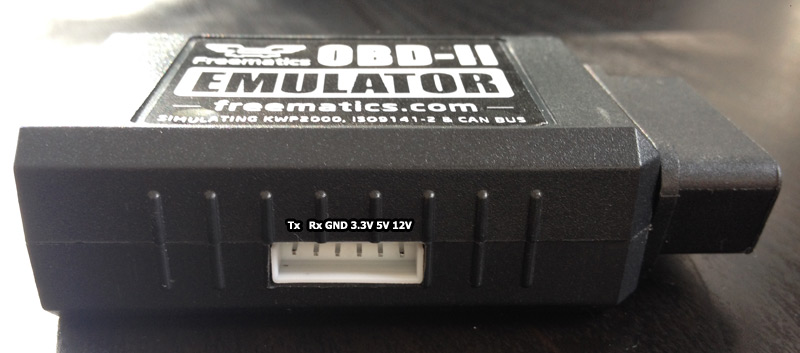
The I/O socket (6-pin or 4-pin XH-2.5) provides an interface for serial TTL connection as well as DC power supply. This makes it possible for a micro-controller like Arduino to manipulate emulator’s states and data in real-time via AT command-set. For 6-pin socket (J1850 version), the pin definitions are Tx, Rx, GND, 3.3V, 5V (left-to-right). For 4-pin socket, the pin definitions are Tx, Rx, GND, 5V (left-to-right).
PC GUI
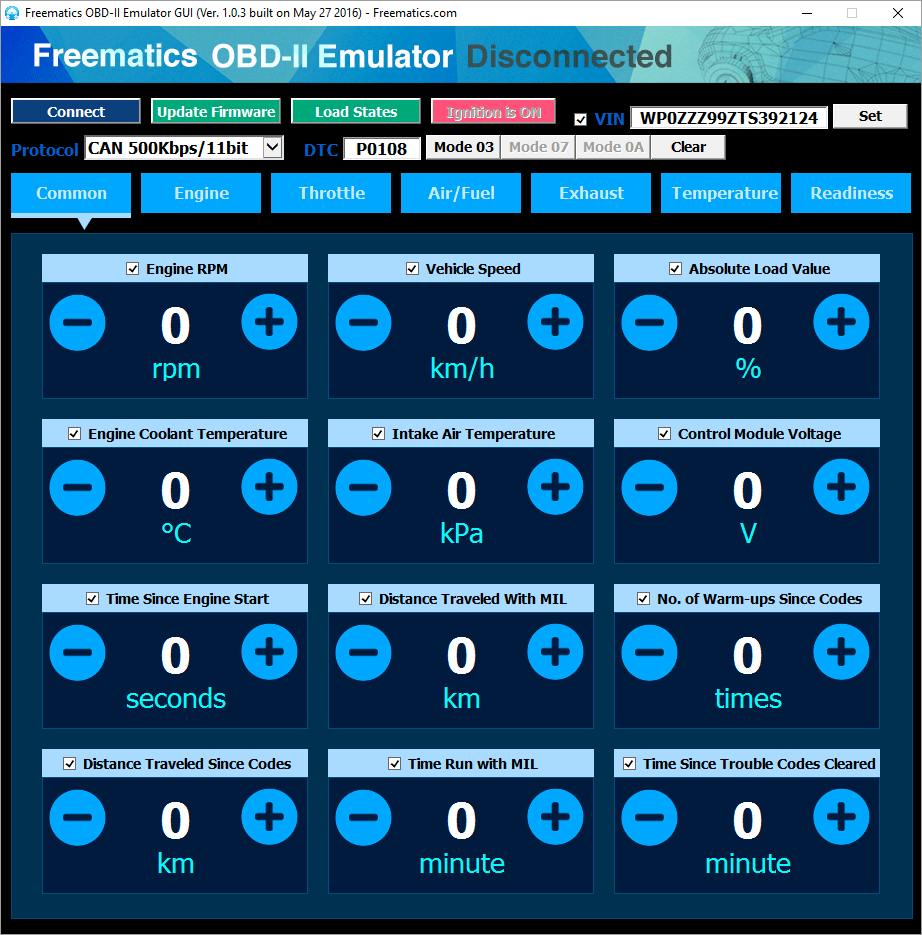
An open-source GUI software is developed for configuring and controlling the emulator. The Windows binary can be downloaded here. Simply extract the downloaded compressed file and run FreematicsEmulator.exe to launch the GUI.
Android and iOS App
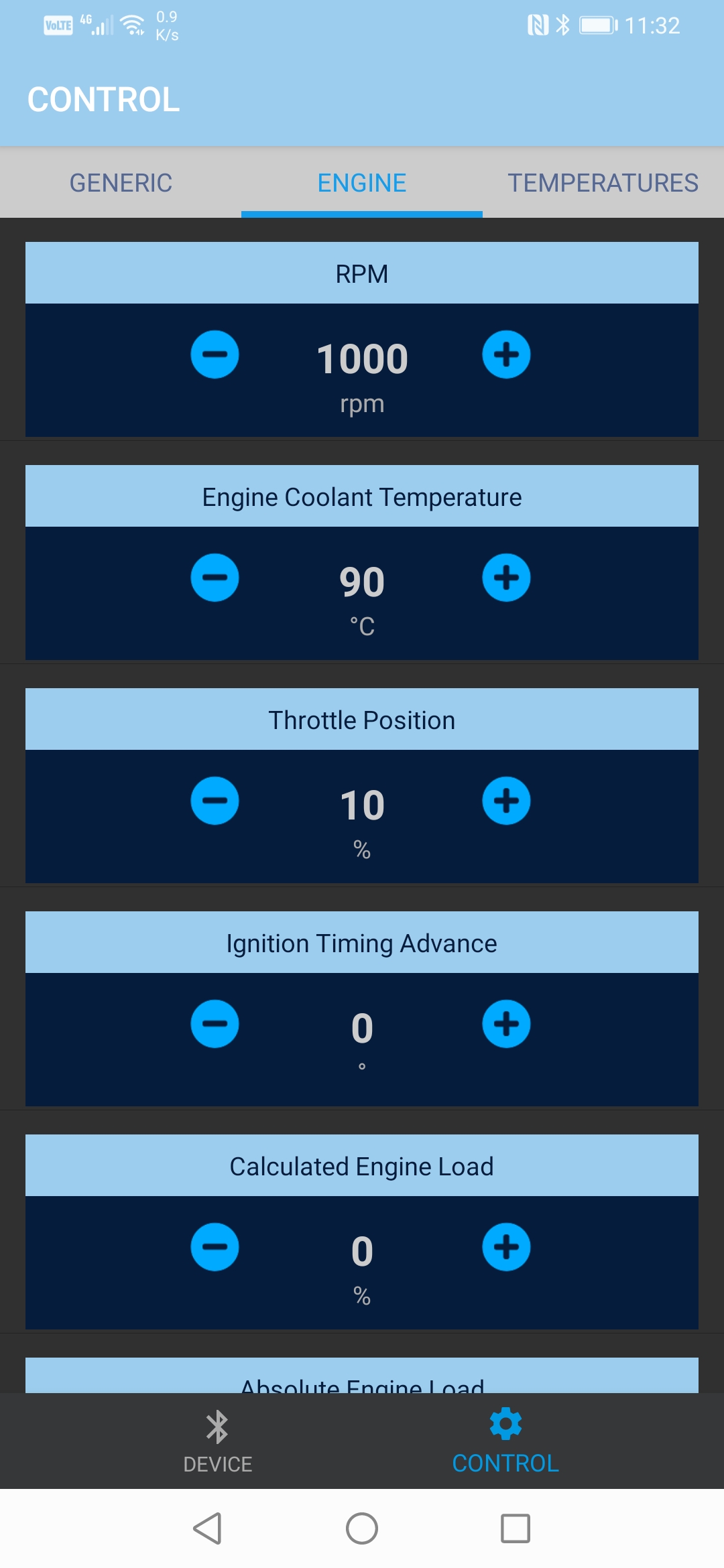
The emulator can be remotely controlled via BLE (Bluetooth Low Energy) by Freematics Controller available as Android App (click here to download the APK) and iOS App (search Freematics Controller in the App Store).
Getting Started
To start using the emulator, following these steps:
1. Connect DC 12V power adapter to the emulator
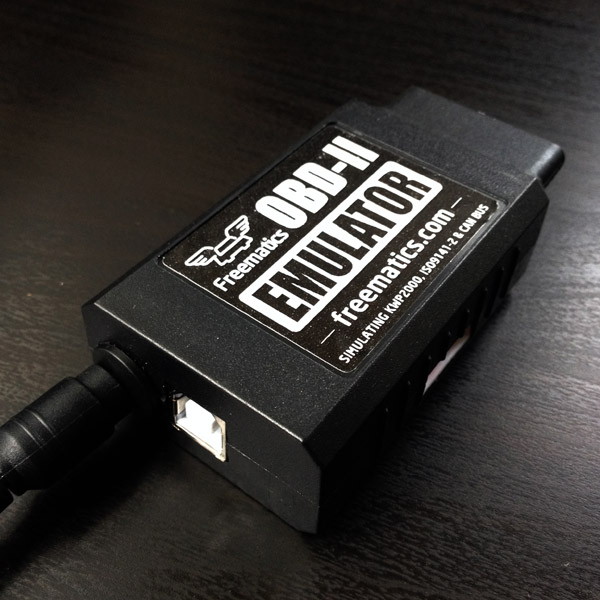
The emulator requires DC 12V power supply. Any DC 12V (minimum 1A) power adapter with 5.5/2.1mm connector can be used. The DC input socket is located beside the USB port.
2. Plug in USB cable and connect to PC
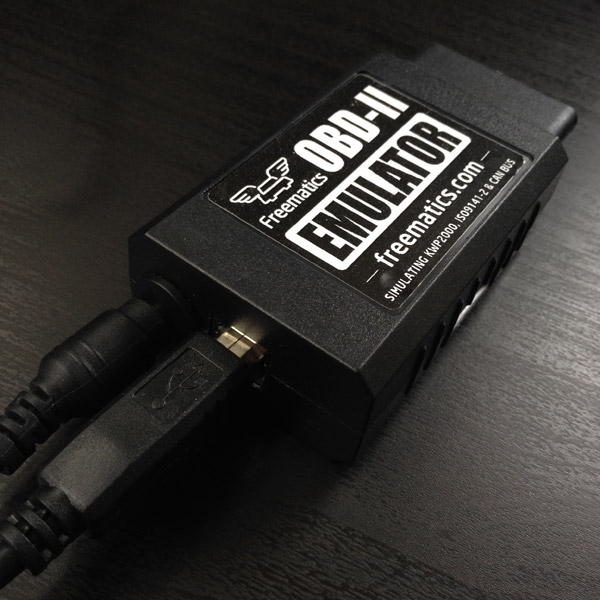
Driver is automatically installed on Windows 7/8. For Windows XP, please download the driver from here.
3. Open Freematics OBD-II Emulator GUI software and connect with the emulator
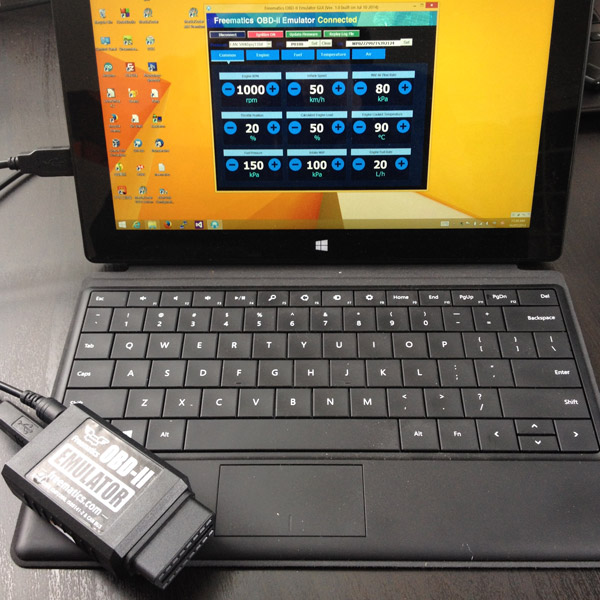
Plug in the emulator and run FreematicsEmulator.exe to launch the GUI software. Click Connect button and the software will attempt to connect with the emulator. Once connected, the Connect button will turn into Disconnect.
4. Plug in your OBD-II device (with OBD-II male connector) into emulator’s OBD-II female port
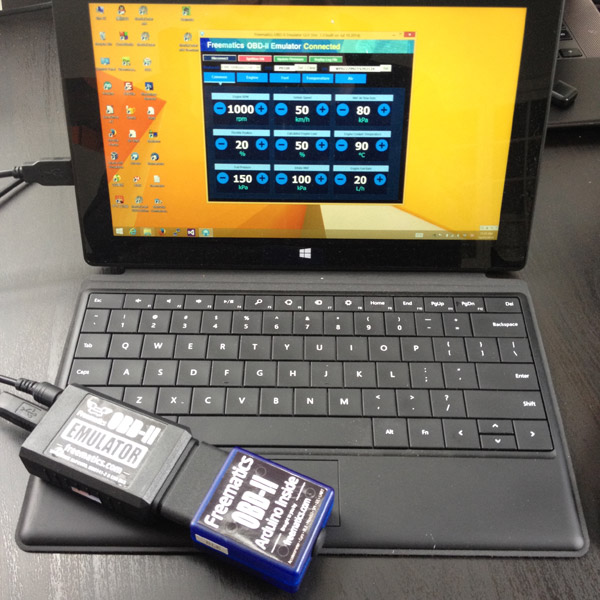
Your OBD-II device should then work as if plugged in the OBD-II port of a real car. You can use the GUI to change the value of OBD-II PIDs, set diagnostic trouble code (DTC) and VIN.
To start using the emulator with Freematics App, follow these steps:
1. Connect DC 12V power adapter to the emulator
The emulator requires DC 12V power supply. Connect the power adapter to the emulator.
2. Install Freematics App
Download and install Freematics App on your android or iOS device.
3. Search and connect to the emulator
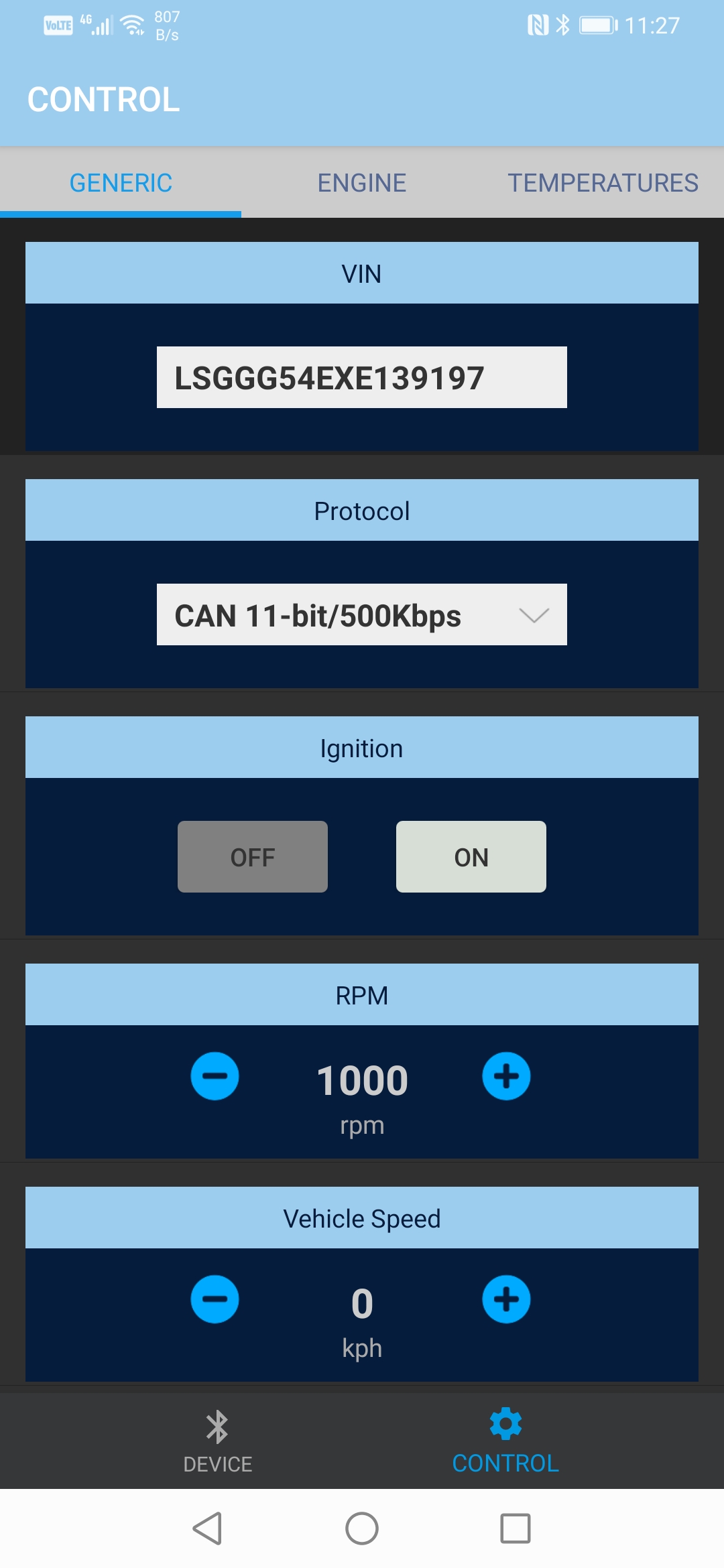
Once the App is launched, it will search for nearby emulator and found devices will be listed on screen. Tap Connect button to connect and the control interface will be loaded.
4. Plug in your OBD-II device
Once connected, you will be able to use your Android or iOS device’s touch screen to adjust the value of PIDs
Serial Control Interface
The communication between the emulator and the host device (PC or any other devices) is done by AT command-set. The GUI is also implemented on the command-set. So if you want to develop your own GUI or host device, it's not difficult at all. For more information about the command-set, please see here.
Power Supply
The emulator is powered by a DC power source up to 30V. A power adapter rated at 12V/1A with 5.5/2.1mm connector (center positive) can be supplied as courtesy without warranty. It is recommended however to use a DC power supply with higher rating especially when you need to use some OBD-II devices requiring high power surge. A voltage adjustable power source is useful for emulating voltage change in real cars. Please also note the input voltage bypasses to the OBD port pin 16 (battery power pin) and is unfused unless the power supply is fused.
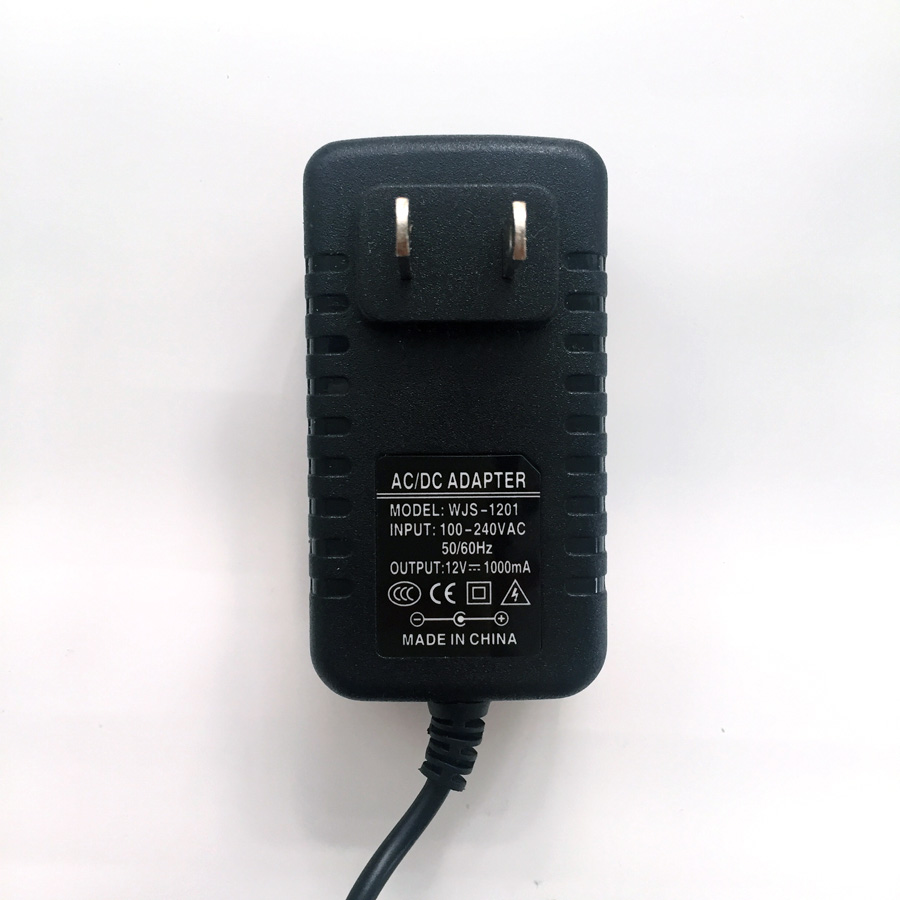
If you need the stock power adapter, please make sure to choose one type in the Available Options on the top of this page before placing your order, otherwise order will be shipped without power adapter.
Parts List
- Freematics OBD-II Emulator MK2 x 1
- USB Cable x 1
- DC 12V/1A Power Adapter (5.5/2.1mm) x 1 (Optional)
Links
Technical confidence before purchase
Add product metafields for specifications, compatibility, firmware, downloads and what is included. This section is intentionally technical to suit Freematics buyers.
Best for: vehicle telemetry, diagnostics and data logging.
Compatibility: update per product model.
Documentation: link manuals, GitHub repositories and firmware downloads.